Up and running in about five minutes.
Your Cube shows each step on its screen. Follow along on your phone — or a tablet, laptop or computer with Wi-Fi.
- Your Cube and its USB cable, plugged into a USB port (a phone charger or computer is fine). Use a charger or power bank that carries the UKCA or CE mark and gives no more than 3 A at 5 V — an ordinary 5 V 2 A phone charger is ideal
- A phone, tablet or computer with Wi-Fi, and your home Wi-Fi name and password
- The Cube Code card from the box (16 characters)
- An email address you can check now, for a verification code
Plug in and join the Cube's Wi-Fi
Plug the Cube in. After a few seconds it shows:
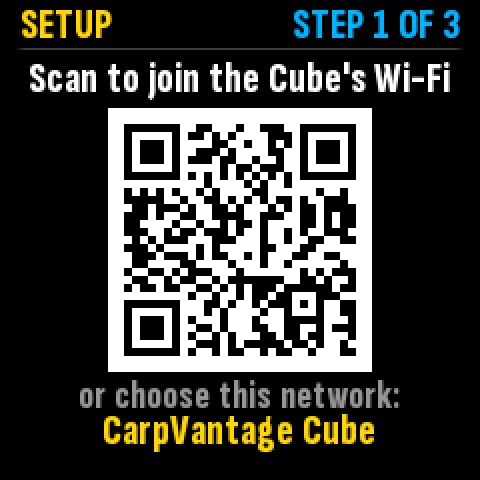
On a phone, scan the QR code with the camera and tap to join. On any device, you can instead open its Wi-Fi settings and choose CarpVantage Cube (no password needed).
The Cube's Wi-Fi has no internet, so your device will mention it — that's expected. On Android, wait for the prompt and choose to stay connected (it may say Connect only this time or Keep Wi-Fi connection). On an iPhone or iPad, the setup page usually pops up by itself — carry on there; if you close it, choose Use Without Internet.
Connect the Cube to your home Wi-Fi
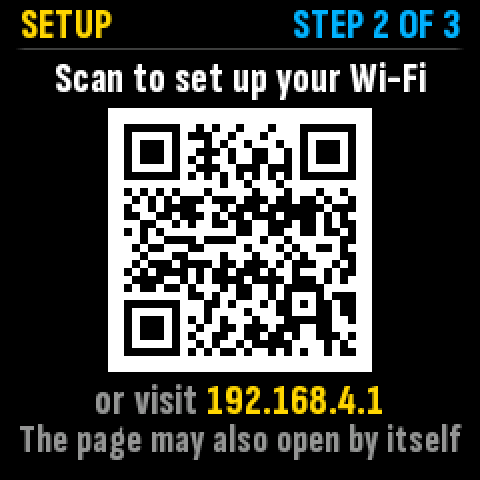
Once your device joins, the Cube shows a new QR code:
Scan it with your phone's camera, then tap the link that appears on your phone to open the Cube's setup page. It may also open by itself — or on a laptop or computer, open a web browser and go to 192.168.4.1.
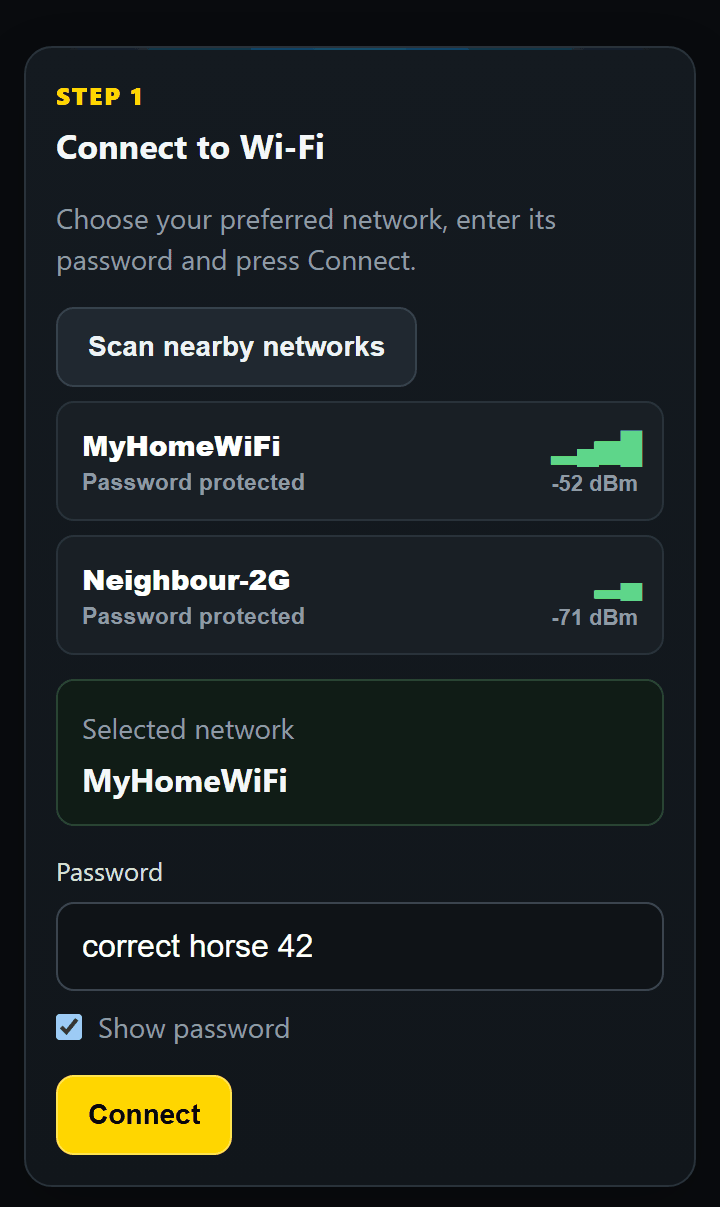
Tap Scan nearby networks, choose your home Wi-Fi, enter its password and tap Connect. Tick Show password to check what you've typed.
Now watch the Cube. It shows Connecting to… with your Wi-Fi name and tries up to four times — usually a few seconds, a minute at most.
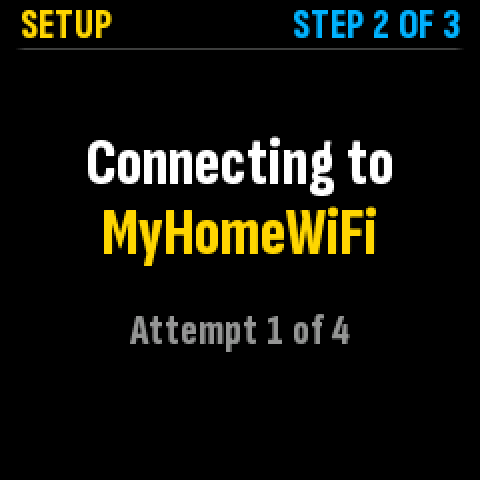
When it connects, the Cube shows Connected to…, restarts and moves on to step 3.
Your device may drop off the Cube's Wi-Fi while it tries, and the Cube's Wi-Fi closes once it has connected — so your device goes back to your home Wi-Fi (or a phone to mobile data). That's expected.
If the Cube can't connect
It tells you why, and nothing is saved:
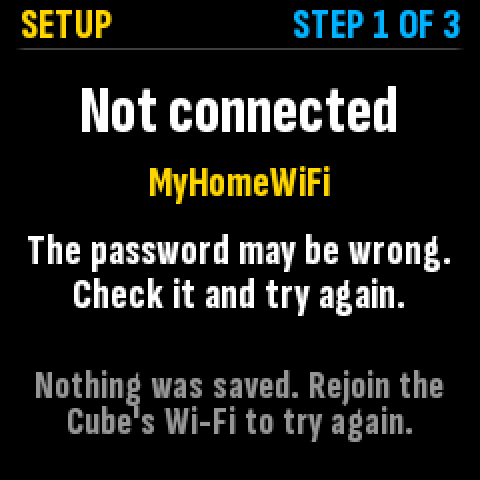
Join CarpVantage Cube again and open the setup page as before. Your network is still selected — re-enter the password and tap Connect. See Common problems if it keeps happening.
Back on your home Wi-Fi, open the Cube again
The Cube now shows the Wi-Fi it has joined. Make sure your device is on that same Wi-Fi (not mobile data), then scan the new code and tap the link that appears — or, on any device, type the address shown under it into your browser:
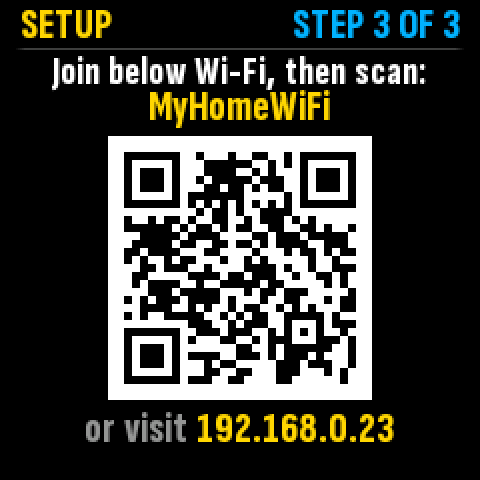
The address under the QR code (for example 192.168.0.23) is your Cube's own page. Bookmark it: you'll use it later to change brightness, screens or Wi-Fi. The address can change now and then (for example after a router restart) — the Cube's Device Status screen always shows the current one.
Activate your Cube
The page first says Preparing your Cube… and shows what it's doing. This can take a couple of minutes. Leave it open and don't refresh it; the activation form appears by itself. If the page goes blank instead, refresh it.
Then enter the Cube Code from your card and your email address, and tap Send verification code.
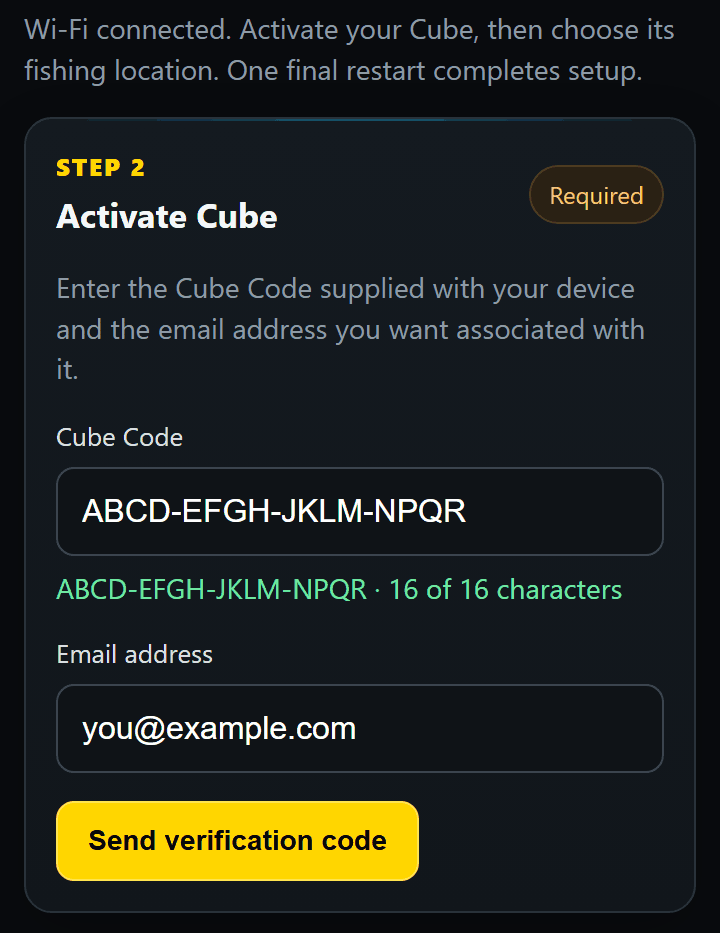
We email you a 6-digit code. Enter it and tap Activate Cube. Your first 12 months of CarpVantage service start now.
Can't see the email? Look in your junk or spam folder first — Hotmail and Outlook often put it there.
Choose your fishing location
Search for the nearest town or village to where you fish, and pick the right result — some names appear more than once, so check the county. The Cube uses this for its conditions.
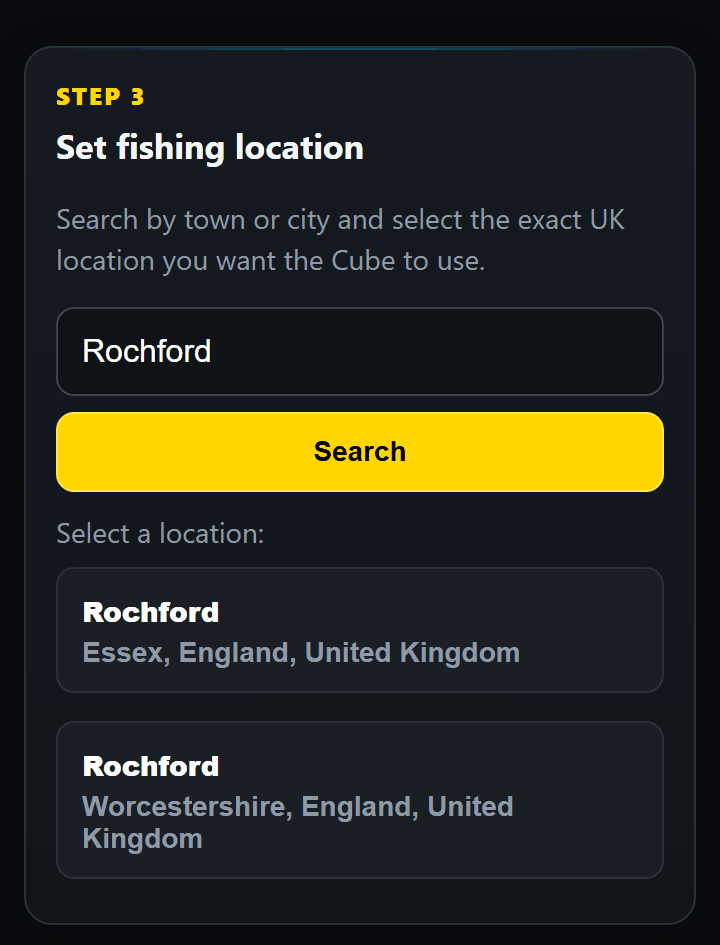
You're all set
The Cube restarts and fetches its first conditions — this takes about a minute. After that it updates by itself every hour.
New to the screens? Reading your Cube explains what each one shows.
Taking it fishing? Add your phone's hotspot first.
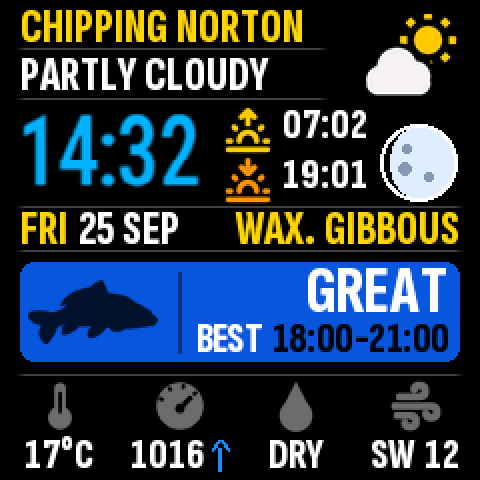
Taking your Cube fishing
At the lake there's no home Wi-Fi, so save your phone's hotspot as a second network now, while you're at home. The Cube then connects to it by itself whenever your home Wi-Fi isn't in range.
- Set your hotspot to 2.4 GHz. The Cube can't see a hotspot on any other band, so this step matters. On an iPhone: Settings › Personal Hotspot, turn on Maximise Compatibility — without it the Cube won't find the hotspot at all. On Android: in the hotspot settings, set the band to 2.4 GHz — many phones default to 5 GHz, which the Cube can't see (the setting may be called Band, AP band or Extend compatibility). Note the hotspot's name and password.
- Open your Cube's page — the address from step 3 — from a device on your home Wi-Fi.
- Switch your hotspot on and keep the phone near the Cube. The Cube only saves a network it can actually join, so the hotspot must be on for this.
- Under Wi-Fi, go to Add network. Tap Scan nearby networks, choose your hotspot, enter its password and tap Save network. (Not showing? Use Network not listed? and type its name.)
- Wait while the Cube checks it. It leaves your home Wi-Fi for up to a minute to try the hotspot, then comes back, and the page returns to Setup by itself. If it couldn't join, the page says why and nothing is saved.
- Check the order. Known Wi-Fi networks are listed highest priority first. Keep your home Wi-Fi at the top, so the Cube uses it whenever it's in range, even if your hotspot is on too. You can change the order with ↑ and ↓ — if a change would move the Cube to another network straight away, the page warns you and asks you to press Confirm.
At the lake
- Power the Cube from a USB power bank and turn on your hotspot. The Cube finds it within a minute or two.
- Conditions are for the Cube's saved fishing location. Fishing somewhere else? Change it on the Cube's page under Fishing location (the Cube restarts to apply it).
- The Cube uses very little mobile data — it only downloads a small update each hour.
- You can save up to 5 Wi-Fi networks, for example a friend's or a holiday home's. Each has to be in range when you add it.
- After a power cut, or back home from the lake, the Cube finds its saved networks again by itself — give it a couple of minutes once your router is back on.
Common problems
I can't see "CarpVantage Cube" in my Wi-Fi list
Give it 30 seconds after plugging in, then refresh your Wi-Fi list. If the Cube isn't showing Setup, step 1 of 3, unplug it for 10 seconds and plug it back in.
If it shows your conditions instead, it's already set up — nothing more to do.
The setup page doesn't open
Stay connected to CarpVantage Cube — your device will warn there's no internet. Choose to stay connected: on Android, Connect only this time or Keep Wi-Fi connection; on iPhone or iPad, Use Without Internet. Then open your browser and go to 192.168.4.1.
Turning off mobile data for a minute can help.
My home Wi-Fi isn't in the list
The Cube uses the 2.4 GHz Wi-Fi band. Most home routers (BT, Sky, Virgin Media and others) offer 2.4 GHz automatically under the same name. If yours only shows a separate "5G" network, turn on its 2.4 GHz network in the router settings.
Move the Cube closer to your router for setup if the signal is weak. For a hidden network, use the option to enter the network name yourself.
The Cube can't find my phone's hotspot
iPhone: go to Settings › Personal Hotspot and turn on Maximise Compatibility. Without it the hotspot uses a band the Cube can't see, so it never appears in the list and the Cube says Not found. Keep that Personal Hotspot screen open while the Cube connects — an iPhone stops advertising the hotspot when the screen is closed and nothing is connected.
Android: in the hotspot settings, set the band to 2.4 GHz. Many phones default to 5 GHz, and the Cube can't see that — it will say Not found just the same. The setting may be called Band, AP band or Extend compatibility.
Then scan again on the Cube's page.
It won't connect to my Wi-Fi
The Cube tries up to four times, adjusting its own Wi-Fi settings between tries to suit different routers — this can take a minute, so let it finish. If it still can't join, its screen says why. Nothing is saved when it fails, so you can simply try again.
"The password may be wrong" — Wi-Fi passwords are case-sensitive. Tick Show password and check it character by character. If it's definitely right, your router may be set to WPA3 only, which the Cube can't join: switch it to WPA2 or WPA2/WPA3 in the router's settings.
"Not found" — the Cube can't see that network. Check the router is on and move the Cube closer. The Cube uses 2.4 GHz Wi-Fi and can't see a network that is 5 GHz only.
"Check the network and password" — restart your router and the Cube, then repeat step 2.
Boosters, extenders or a mesh system? If more than one Wi-Fi box in your home shares the same network name, do the setup with the Cube close to the main router. Once it's set up you can move it.
Step 3's QR code doesn't open anything
Your device is probably not on the same Wi-Fi as the Cube yet (phones often switch to mobile data). The Cube's screen names the Wi-Fi it joined — connect your device to that one, then scan again or type the address shown under the QR code.
Still nothing? Guest networks, and some routers' "device isolation" setting, stop devices on the same Wi-Fi talking to each other. Use your main home network instead of a guest one.
The page stays on "Preparing your Cube…"
The page shows which step it's on and keeps trying by itself — leave it open for a couple of minutes. The Cube can be busy for up to a minute while it registers, so the step may not change for a while.
If the page goes blank, refresh it.
If it says the Cube isn't getting an answer from the internet, the Cube has joined the Wi-Fi but that Wi-Fi isn't online. Check your broadband is working. Guest and public networks that need a sign-in page won't work, because the Cube can't sign in.
If it's still stuck after five minutes, email us what the page says (below).
The verification email hasn't arrived
Check your junk or spam folder, then wait a couple of minutes. You can request a new code from the same page. Make sure the email address is spelt correctly.
My Cube Code isn't accepted
Type it exactly as on the card — letters can be upper or lower case, and the dashes are added for you. Codes never use the letters O or I or the numbers 0 or 1, so if you think you see one of those, check the printed code again.
If it says the code has already been used, contact us with your Cube ID (below).
The Cube says "No recent data"
It hasn't been able to update for a while — usually a Wi-Fi or broadband problem. Check your internet is working. The Cube catches up by itself once it's back online.
I've lost my Cube's address
It's on the Cube's Device Status screen, which is always part of the rotation — wait for it to come round. Type the address into a browser on a device that's on the same Wi-Fi as the Cube.
The address can change, for example after a router restart, so check the screen if a bookmark stops working.
The Cube is showing setup again after a power cut
The Cube starts up faster than most routers. It keeps looking for your saved Wi-Fi and reconnects by itself, usually within a couple of minutes of the router coming back. You don't need to set it up again.
I want to start setup again
Open your Cube's page and use Start again (under Having trouble?, or at the bottom of the Setup page). Type RESET in the box and press the button. This clears its Wi-Fi, location and settings; your activation and service are kept.
Send us a message and tell us what the Cube's screen shows. If you can, include your Cube ID — it's on the Support page of your Cube's own page (the address from step 3).